A worked example
One word list for your PDFs, scans and open tabs
Most find tools search one page at a time. With Highlighty PRO, the list of terms you save once is used in your PDFs, scanned pages included, and in every tab you have open, each term in its own color.
The task
You are checking a supplier deal with a retail group. The services agreement is a PDF, the amendment is a scan, and the group's annual report and a news article are open in other tabs. You care about five things:
- termination
- indemnify
- Confidential Information
- Effective Date
- revenue
1. Save the list once
Open Highlighty, type each term and press Enter. Each one gets its own color, and the list is saved for the next document and the next day. Up to five terms per list are free; PRO removes the limit.
2. Open the agreement and the scan in PDF Search
Click Open PDF Search in the popup and add both files. Your list runs on the PDF in front of you: every term is highlighted on every page and counted. Switch to the amendment and the same list runs there. The scan has no text layer, so Highlighty reads it with English OCR on your computer; nothing is uploaded.
The X-Ray panel in the sidebar counts each term and lists every match with the text around it. Click a match to jump to it.
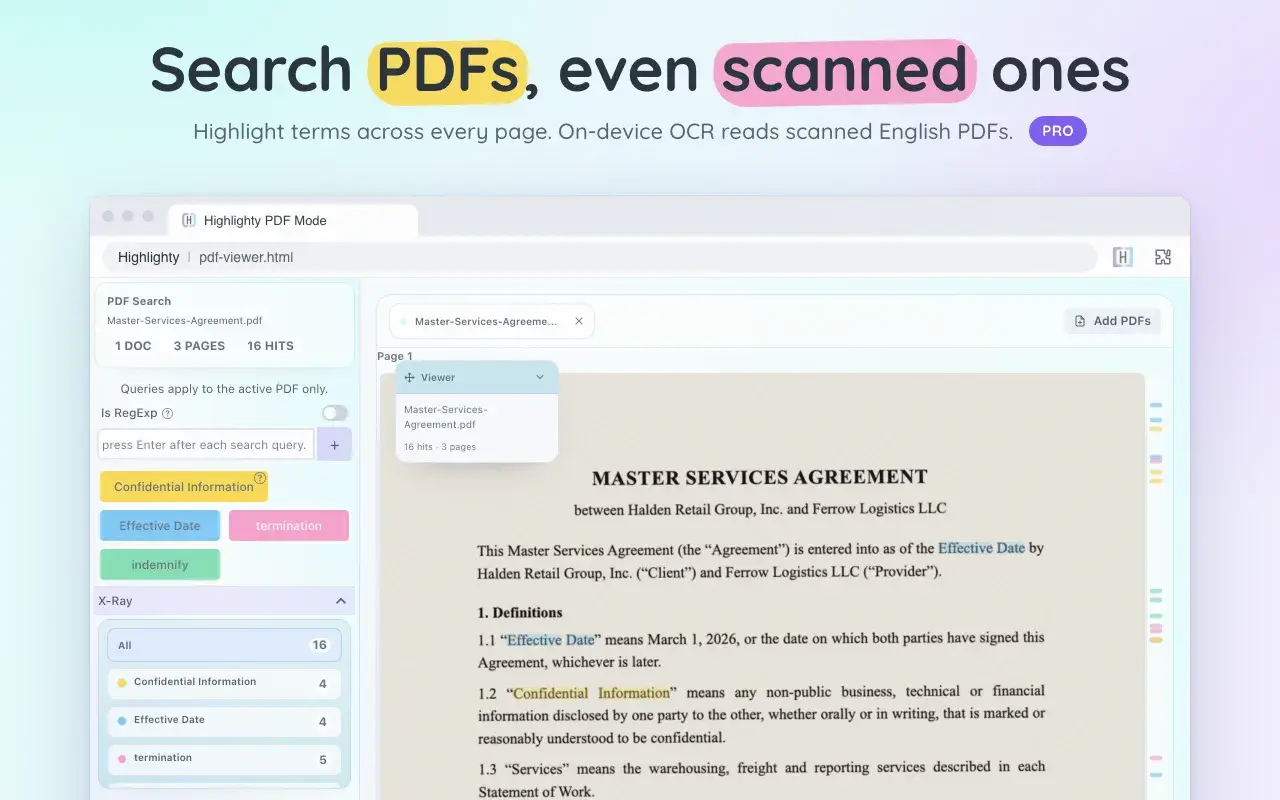
PDF Search: four terms in a three-page agreement, 16 matches, counted per term. 3. Check every open tab
On the annual report, press Ctrl+F (⌘+F on a Mac), type revenue and click All tabs. Highlighty lists the other open tabs that mention it, in every window, with a count and a line of context. Click one to go straight there, where your list is already highlighted.
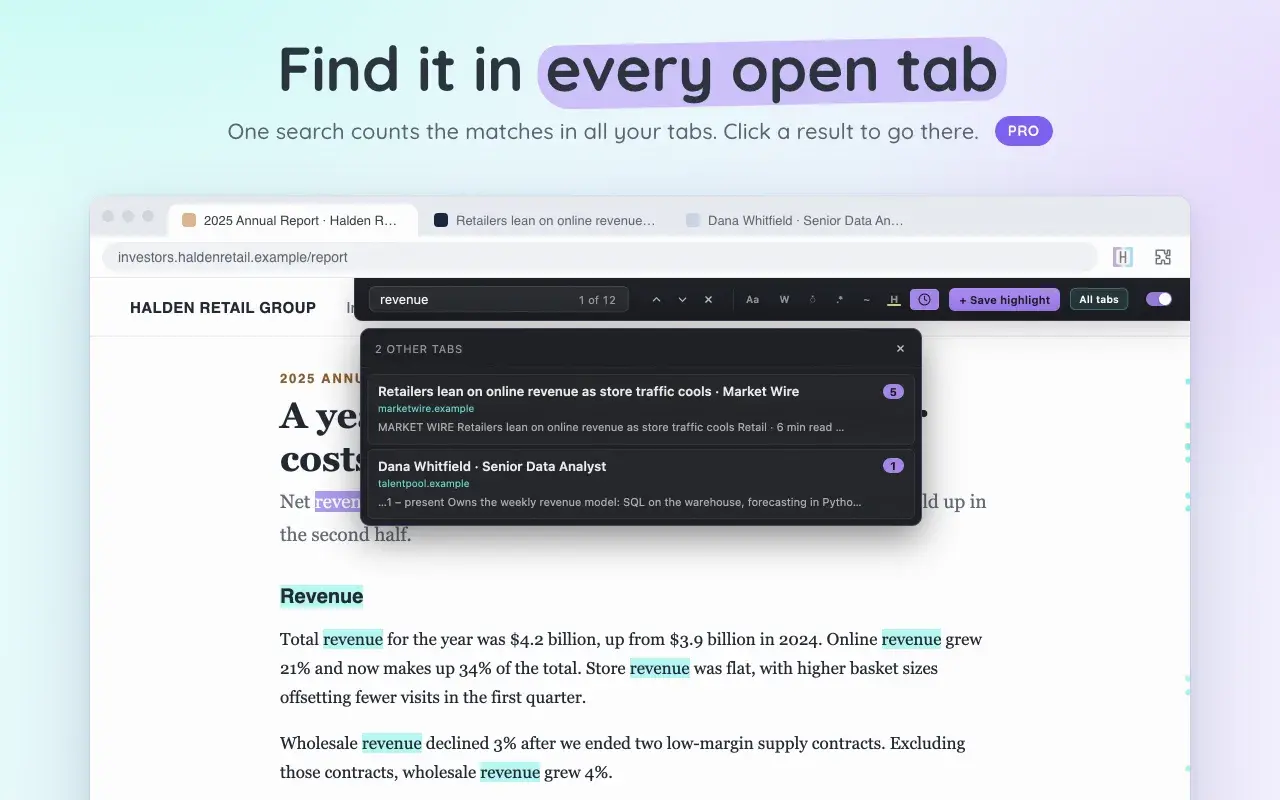
All tabs: the term found in two other tabs, with counts and context.
What this task needs
| Step | Free | PRO and the 5-day trial |
|---|---|---|
| A saved, colored list on web pages, with X-Ray | Yes, up to 5 terms per list and 2 lists | Unlimited terms and lists |
| PDF Search, including OCR for scanned English PDFs | No | Yes |
| All tabs from the find bar | No | Yes |
PDFs and pages are searched in your browser and are not sent to Highlighty. OCR accuracy depends on scan quality, so check matches against the page image. Password-protected PDFs are not supported.
Try it on our sample files
Both fictional files repeat assignment, consent and change of control. Save those three terms, then add the files to PDF Search.
To start the 5-day PRO trial, open Highlighty, go to Account and choose Continue with Google, or create an account with any email address and verify it. No card is needed and nothing is billed unless you choose a plan. Compare the plans.
Add Highlighty to your browserMore examples: contract review, candidate screening and the full how-to guide.